A phone can work with a car in two ways. Pairing links it for calls and music, and mirroring puts a simplified version of the phone's apps on the car's touchscreen. Both are set up while parked, and after that they mostly look after themselves.
Pairing and mirroring are different jobs
Pairing uses a short-range wireless link so the car can play the phone's audio and handle calls through its own speakers and microphone. On many systems it also lets the car read messages aloud. The car's own screens and navigation stay in charge.
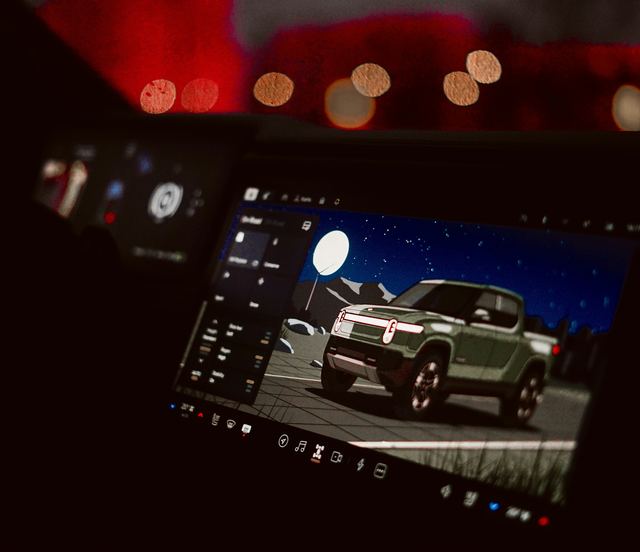
Mirroring goes further. It runs a simplified, car-friendly layout of certain phone apps on the touchscreen, through a cable to the car's data port or wirelessly. It relies on a phone's built-in car mode, so the maps, music and messages look the way the phone shows them rather than the way the car does.
Setting it up before you drive
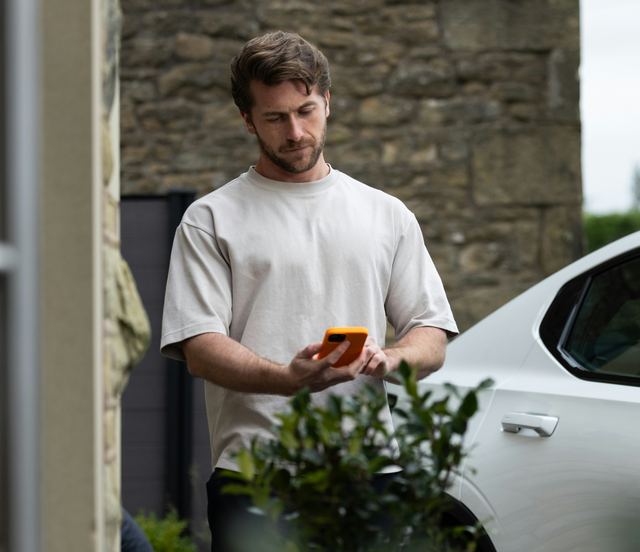
Do the setup with the car in park, the car switched on and the phone in your hand. Put the car's phone menu into pairing mode, find the car in the phone's wireless settings and confirm the code that appears on both screens. For mirroring, the car or the phone will ask permission to start the car mode.
Allow access to contacts and messages only if you want the car to show them, since many cars let you skip either. Choose which apps appear in the mirrored layout and set your usual destinations while still parked. Then nothing needs touching once you pull away.
- Car in park, phone in hand, nobody waiting on you
- Contact and message access allowed only if you want it
- Navigation destination entered before you move
- Volume and audio source set while stopped
On the road
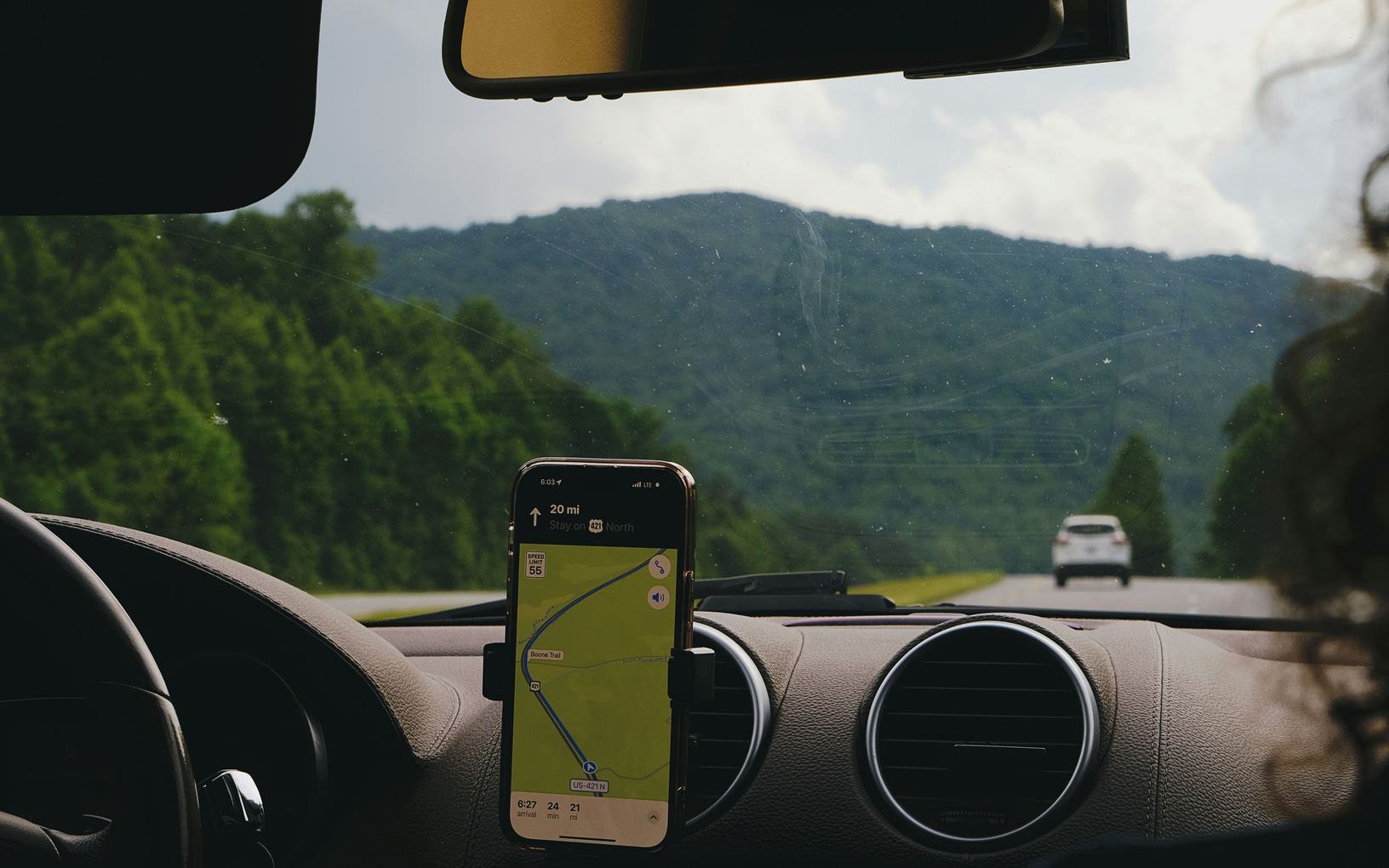
Never hold or tap the phone while driving. Use the steering wheel buttons and voice control, and keep the phone in a mount or a tray where you will not reach for it. If something needs more than a word or a button press, pull over somewhere safe and park first.
Voice control copes well with short, plain requests. Calls and messages read aloud still pull attention from the road, so keep them brief and let a call wait when traffic is busy. Local laws on phone use in a car vary, and some ban touching even a mounted phone.
When it drops out or will not connect
A phone update, a car update or a new phone can break a pairing that used to work. Removing the car from the phone and the phone from the car, then pairing again, clears many problems. For a wired connection, a worn or charge-only cable is a common culprit, so try a data cable you know works.
If several phones are paired, the car may grab the wrong one when two people get in. Most cars let you set a preferred phone or delete old ones from the list. Clear out phones that no longer ride in the car, which also stops old contacts from lingering in the system.
- Forget the pairing on both the phone and the car
- Restart the phone and the touchscreen
- Try a different data cable for a wired connection
- Check the permissions for the phone's car mode
What the car keeps from your phone
Pairing can copy contacts, call history and recent messages into the car. That copy stays after you disconnect, and the next driver may be able to see it. The article on car data and privacy explains what else the car records, and the one on wiping your data covers clearing it before a sale.
In a rental or someone else's car, think about whether pairing is worth it. Skip contact access, or delete your phone from the car before you hand back the keys. The car's phone menu usually has a delete option beside each paired device.
What to take away
- Pairing handles calls and audio; mirroring shows apps
- Set up and choose destinations while parked
- Never hold or tap the phone while driving
- Delete your phone from cars that are not yours
Try it while parked
- Pair your phone and confirm the code on both screens
- Set a preferred phone if more than one is paired
- Ask voice control for a destination while parked
- Find where to delete an old phone from the list
- Check which steering wheel buttons handle calls
Questions
Some cars mirror only through a cable to the data port, others only wirelessly, and some do both. The manual or the car's phone menu says which. A wireless link can drain the phone faster, so a charging pad or a cable helps on a long drive.
Mirroring shows only the apps that support a phone's car mode, in a simplified layout meant to limit distraction. Apps without that support do not appear, and that is by design rather than a fault.